
NETWORK | PC | Use Now
What is this
I created this app because my "VR Simulator Cockpit" (Click here) project is heavily congested with wireless connection especially when i need a high quality uninterrupted WIFI connection between my PC and VR headset via WIFI router.....but conflict with external frequency does happens quite often and that's where my app comes in to help me out what knock down/degrade my frequency channel. .....and i add bluetooth scanner just for fun, hehehe!.
So i called it "RF SCANNER-XL", is a web-based dashboard designed for local radio frequency (RF) monitoring. It analyze nearby Wi-Fi (802.11) networks and Bluetooth Low Energy (BLE) devices.
Unlike standard web applications, web browsers lack the native hardware permissions required to perform raw RF sweeps. To overcome this limitation, RF SCANNER-XL operates on a hybrid architecture, utilizing a lightweight local Python server to interface with your machine's network interface cards (NICs) and stream that data back to the browser via WebSockets.
Updates and bug fix log:
7/9/2026 - Auto scan started automatically once 'Connected' to Python agent on both WIFI and BLUETOOTH tab.
Features
- Dual-Band Scanning: Monitors both Wi-Fi (2.4 GHz, 5 GHz, 6 GHz) and Bluetooth LE environments.
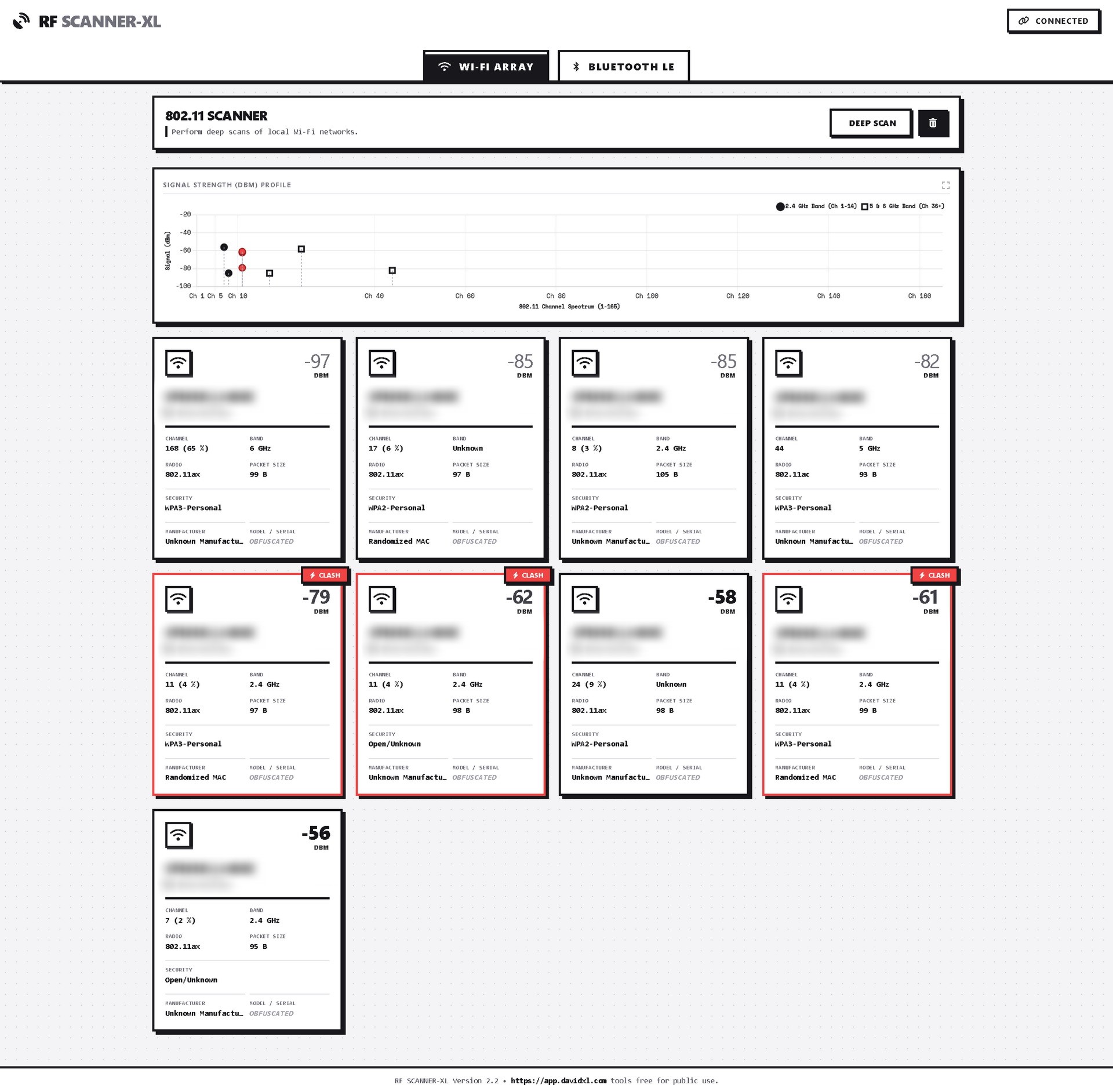
- Spectrum Analysis Charting: Visualizes signal strength (dBm) across different channels to identify frequency congestion and overlapping networks.
- Collision Detection: Highlights Wi-Fi networks operating on the same channel, warning users of potential interference.
How does it work?
The application consists of two main components:
- The Frontend Dashboard (HTML/JS/CSS): A single-file web application that handles data visualization, charting, and user interaction.
- The Backend Server (
server.py): A local Python script that executes system-level commands (e.g.,netsh wlanon Windows) and uses libraries likebleakto scan for Bluetooth devices. It acts as a WebSocket server, broadcasting the scan results to the frontend.
How to use it?
To use RF SCANNER-XL, you must run the local Python backend. Follow these steps:
Prerequisites
- Python 3.7+ installed on your system.
- A machine with active Wi-Fi and Bluetooth hardware.
- Note: Wi-Fi scanning is currently optimized for Windows environments via the
netshutility.
Step 1: Generate the Server Script
- Open the RF SCANNER-XL dashboard in your web browser.
- If the backend is not running, an "Backend Disconnected" modal will automatically appear.
- Click the "Download server.py" button. Save this file to a convenient location on your computer.
Step 2: Install Dependencies
Open your terminal or command prompt and install the required Python libraries using pip:
pip install websockets bleak
- websockets: Handles the real-time communication with the browser.
- bleak: A cross-platform Bluetooth Low Energy client for Python.
Step 3: Run the Server
In your terminal, navigate to the directory where you saved server.py and run it:
python server.py
Note: On Windows, you may need to run your command prompt as an Administrator to ensure the script has permission to command hardware sweeps.
You should see terminal output confirming the server is running on ws://localhost:8765.
Step 4: Connect the Dashboard
- Return to the RF SCANNER-XL browser window.
- Click the "Connect & Start" button on the modal, or click the "Start Server" button in the top right corner of the header.
- The status should change to "Connected," and the application will automatically trigger initial scans.
Usage Guide
The Wi-Fi Array Tab
This view focuses on 802.11 wireless networks.
- Deep Scan: Click this button to initiate a new sweep. The backend will command the Wi-Fi adapter to scan and then parse the results.
- Signal Profile Chart: Displays networks plotted by Channel (X-axis) and Signal Strength in dBm (Y-axis).
- Circles represent the 2.4 GHz band.
- Squares represent 5 GHz and 6 GHz bands.
- Red icons indicate a frequency clash (multiple networks on the same channel).
- Device Cards: Each detected network generates a card detailing its SSID, MAC Address (BSSID), Signal Strength, Channel, Security type, and identified Manufacturer. Cards with a red border and a "Clash" tag are experiencing channel interference.
The Bluetooth LE Tab
This view focuses on nearby BLE peripherals.
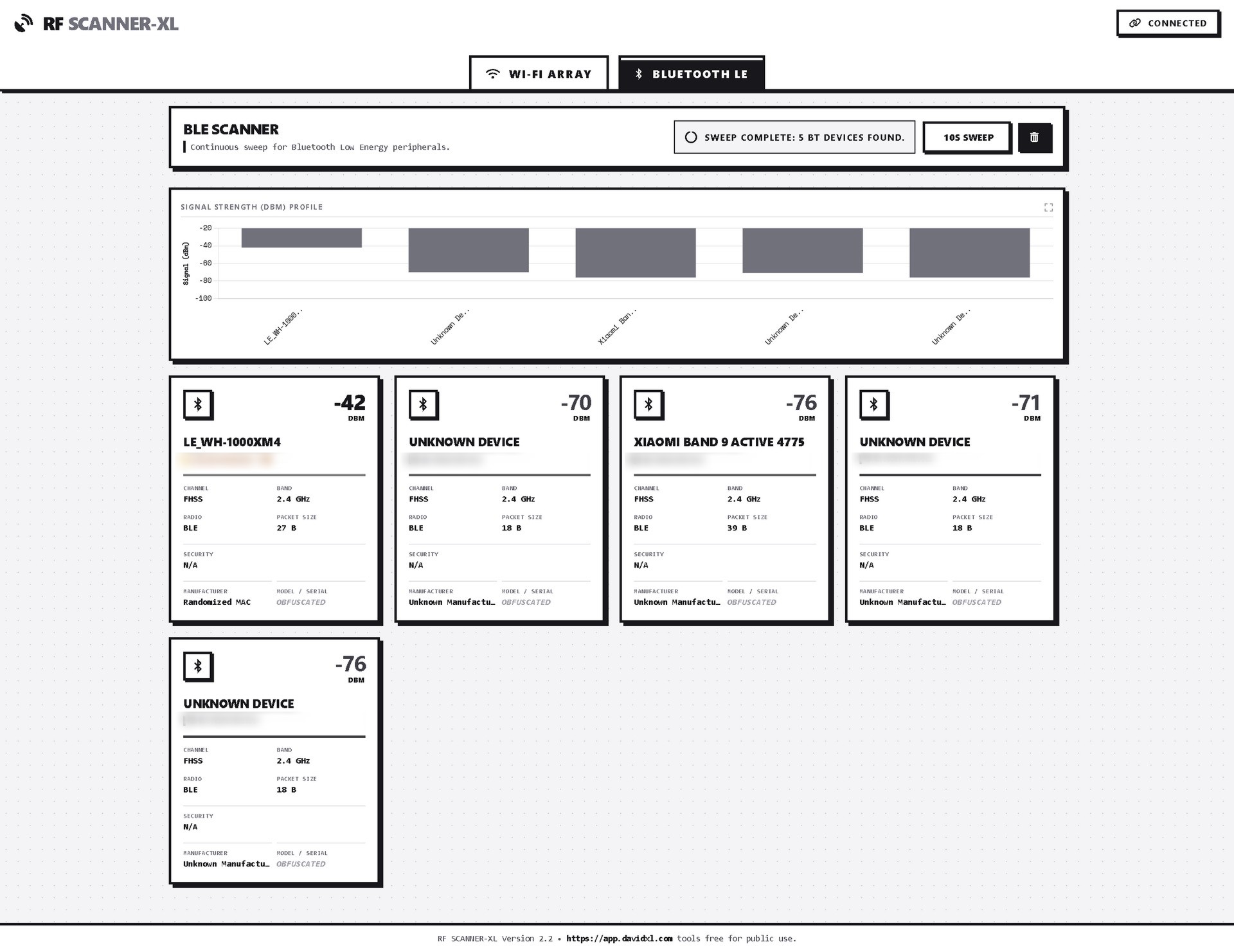
- 10s Sweep: Initiates a 10-second continuous discovery scan for Bluetooth devices.
- Signal Profile Chart: A bar chart displaying detected devices and their corresponding signal strength.
- Device Cards: Displays the device name (or "Unknown"), MAC address, and Signal Strength. Note that many modern devices use randomized MAC addresses for privacy, which the dashboard will flag.
Troubleshooting
"Backend Disconnected" Modal won't go away:
- Ensure the Python script is actively running in your terminal without errors.
- Check that no other application is using port
8765. - Ensure your browser allows connections to
localhostor127.0.0.1.
No Wi-Fi Networks Found (Windows):
- Windows strictly guards Wi-Fi scanning. You must have "Location Services" turned ON in your Windows Privacy Settings.
- Ensure your terminal is running as Administrator.
No Bluetooth Devices Found:
- Ensure your machine's Bluetooth is turned on.
- The
bleaklibrary may require specific OS permissions depending on your system (e.g., Bluetooth permissions in macOS System Settings).