
WEB SECURE | PC | Use Now
What is this
You know i know and we felt it everyday; everytime we go online on our internet web browser we need to keep on guard and be cautious. Surfing through webpage is like walking on a hidden dangerous land mine, we never know if we're unlucky enough to step on atrocious hidden ads/pop-up that blows infront on our screen. Shady input form, buttons and evens clickable overlays with hidden script can be daunting at time....totaly mental wreck! If you check at some Reddit discussion under cyber security thingy how shocking to see some end user fall deep into this trap of data theft. So i decided its time for me to step up and build a solution....so i build > SURF SAFE-XL, a lightweight, heuristic security scanner designed to keep you safe from deceptive web practices, phishing attacks, and data theft. "Make sure you know which DOWNLOAD button to click"....can be less nerve wrecking after this.
This tool is built as a Bookmarklet—a small, secure piece of JavaScript that lives in your browser's bookmarks bar. It requires no extensions, no installations, and never sends your data anywhere. It runs entirely locally on your machine to analyze the web page you are currently viewing.
Updates and bug fix log:
10/9/2026 - Add more features: EXIF deection, 3rd party tracker detection and 'Canvas Fingerprinting' detection.
9/9/2026 - Allow user to click warning numbering and focus its area it warned about.
8/9/2026 - Fix 'Speech Bubble' warning info not showing properly over web elements on Edge browser.
What Does It Do?
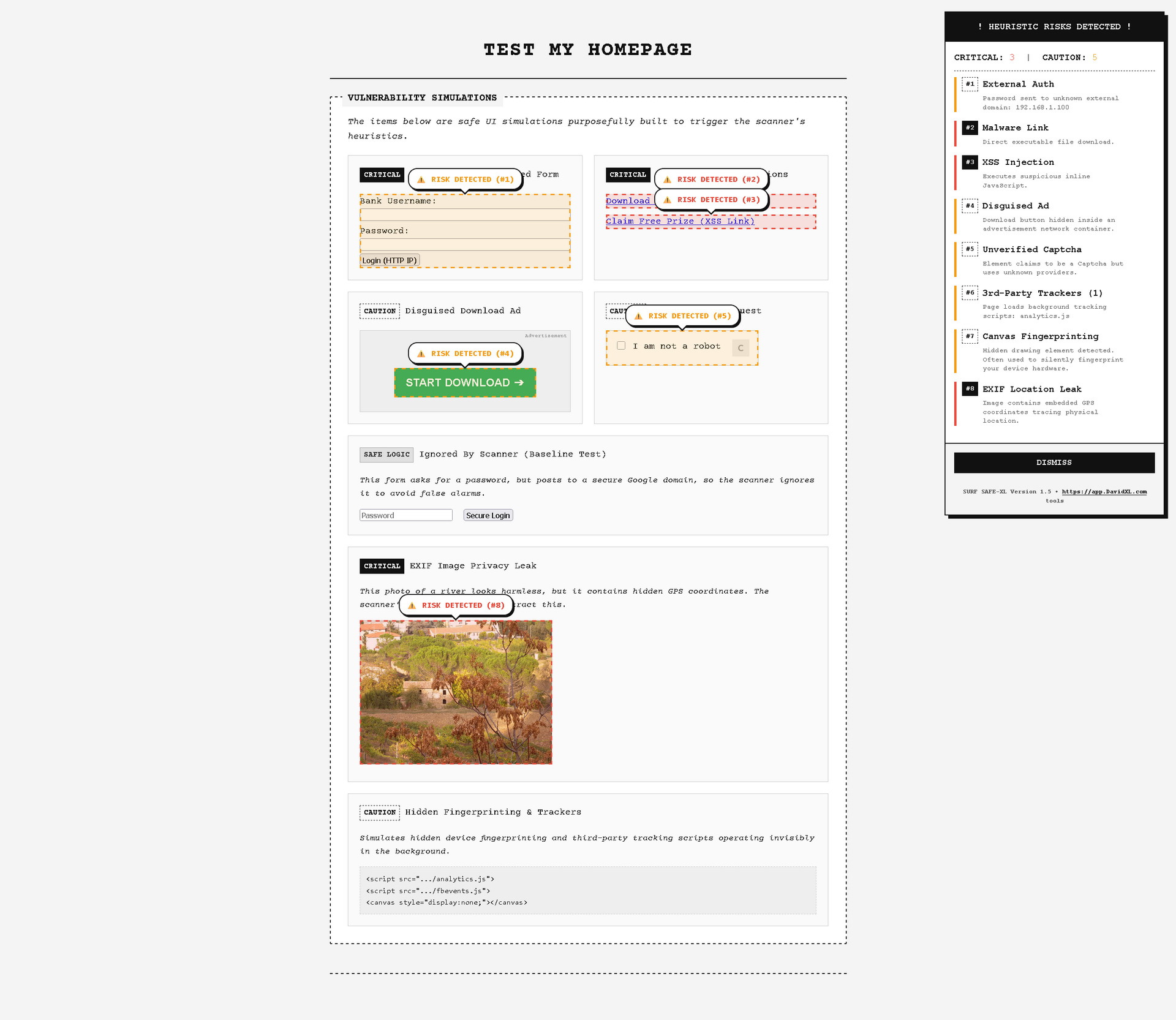
Modern scammers use highly sophisticated visual tricks to steal your data. SURF SAFE-XL scans the underlying code of a website (the DOM) to find hidden threats that the human eye cannot see. When you run the scanner on a suspicious page, it hunts for the following threats and flags them with highly visible Speech Bubbles and a detailed Warning Pop-up where it shows "! HEURISTIC RISKS DETECTED !" inside of the browser screen located on left top side.
1. Phishing & Insecure Forms (MitM)
- Unencrypted Transmissions: Detects if a form (especially ones containing passwords) is attempting to submit your sensitive data over an unsecure HTTP connection where it can be intercepted.
- Raw IP Hosts: Flags URLs relying on raw IP addresses instead of registered domain names (a common tactic for disposable phishing servers).
- External Auth: Warns you if a form is sending your login credentials to an unrecognized third-party domain.
2. Malware, XSS, & Obfuscated URLs
- Direct Malware Links: Instantly flags hyperlinks trying to download executable files (.exe, .bat, .apk, .scr).
- Cross-Site Scripting (XSS): Exposes links hiding malicious inline JavaScript payloads designed to steal your session cookies.
- Obfuscated Links: Detects non-SEF URLs with excessively long query parameters often used to hide malware payloads or aggressive tracking.
3. Disguised Ads & Click Traps
- Fake Downloads: Detects buttons containing actionable text ("Download", "Start Now") that are secretly wrapped inside advertisement network containers (like DoubleClick or sponsored sidebars).
- Clickjacking Overlays: Scans for massive, nearly invisible <iframe> or <div> elements layered over the screen designed to hijack your clicks and force you to interact with hidden pages.
4. Data Stealers & Fake Captchas
- Hidden Form Tracking: Flags login forms that contain an excessive amount of hidden input fields next to the password box, often used by keyloggers and data stealers.
- Unverified Captchas: Detects elements claiming to be a security captcha that do not originate from trusted, verified providers (like Google reCAPTCHA or Cloudflare Turnstile).
5. Privacy Leaks & Tracking
- EXIF Location Leaks: Asynchronously downloads and parses the binary data of images on the page to expose hidden EXIF GPS coordinates or private camera metadata.
- 3rd-Party Trackers: Scans hidden scripts and pixels against a database of known data-mining networks (Google Analytics, Facebook Pixel, etc.).
- Canvas Fingerprinting: Hunts for invisible <canvas> tags used by websites to silently identify and track your unique device hardware.
How to Install
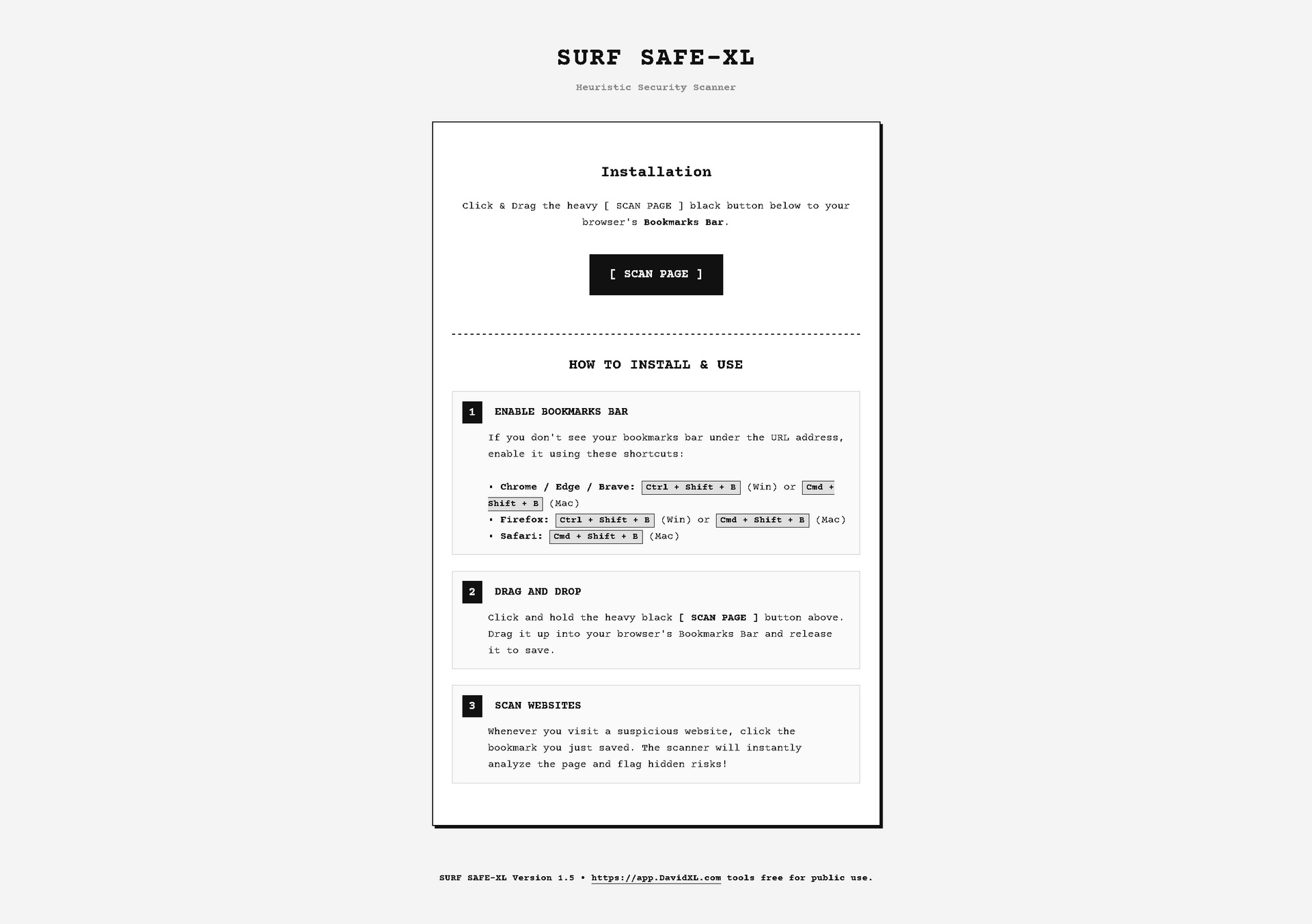
Because SURF SAFE-XL is a bookmarklet, installation takes about 5 seconds. You just need to drag a button into your browser's Bookmarks Bar.
Step 1: Reveal Your Bookmarks Bar
If you don't already see a bar under your URL address bar, you need to unhide it. Use the keyboard shortcuts below for your specific browser:
- Google Chrome / Microsoft Edge / Brave:
- Windows/Linux:
Press Ctrl + Shift + B - Mac: Press
Cmd + Shift + B
- Windows/Linux:
- Mozilla Firefox:
- Windows/Linux:
Press Ctrl + Shift + B - Mac:
Press Cmd + Shift + B
- Windows/Linux:
- Apple Safari (Mac):
- Press
Cmd + Shift + B(Alternatively, go to View > Show Favorites Bar)
- Press
Step 2: Drag and Drop
- Open the SURF SAFE-XL generator page.
- Click and hold the heavy black [ SCAN PAGE ] button.
- Drag your mouse up into the Bookmarks Bar you just revealed.
- Release the mouse to drop the button. It will now appear as a saved bookmark!
How to Use
- Browse the web normally.
- If you land on a webpage that looks suspicious (e.g., a file-sharing site with too many download buttons, a weird banking login page, or a link someone emailed you), click the SURF SAFE-XL bookmark in your bookmarks bar.
- The page will instantly freeze and analyze.
- Look for Red or Yellow Speech Bubbles pointing directly at dangerous elements.
- Review the Draggable Warning Modal in the top right corner for a detailed breakdown of what the scanner found.
*Note: SURF SAFE-XL is a heuristic tool. While highly accurate, always use your best judgment online. If a site feels unsafe, leave it.
How to Uninstall (Remove)
Because SURF SAFE-XL is just a bookmark and not a traditional browser extension, uninstalling it is instant and leaves zero trace on your system.
- Locate the [ SCAN PAGE ] button in your browser's Bookmarks Bar.
- Right-click (or Control-click on Mac) directly on the button.
- Select Delete from the context menu (this may be called Remove or Delete Bookmark depending on your browser).
That's it! The tool is completely removed from your browser.