
SECURITY | All | Use Now
What is this?
I remember back in my young days (even today) i used to hide bunch of private and confidential file inside "pseudo" file or false file to avoid unwanted theft or view especially if your device that holds your data fall into wrong hands or you lost it. From simple method of Zip file with secure password, to rename into random extension filename and to "steganography" a method where you combine and embed your file into another file for example embed excel or words documents inside an image was a basic way to do it. We used merge two files where on file act as a 'cover' image using 'Command line syntax' or Sudo Terminal prompts....something that us programmer do but was a cumbersome step to do which is my i created this tool.
This is why i created FILE SMUGGLER-XL, a powerful, privacy-first tool designed to hide your sensitive files inside a seemingly ordinary picture. FILE SMUGGLER-XL uses a technique similar to digital steganography to create a "Polyglot File". A polyglot file is a file that is valid in multiple different formats at the same time. When you use this app, it combines your selected Cover Image (a normal picture) with your Payload (your secret files) into a single, functional .png file.
- If you open it in an image viewer: It looks and acts exactly like a standard picture.
- If you rename it to .html and open it in a web browser: It magically transforms into an interactive extractor where you can extract your hidden files.
There are a lot of scenario where this tools is extremely useful especially as shown example below:
- Hide all confidential personal documents such as driving license, birth certificates, financial statement, tax, password log, family files and etc under one innocent looking image of my pet cat or family photo (Eg:
MyCat.PNGorMyFamily.PNG) photos then store inside your Smart Phone or any storage devices. If you travel around places where your device can get stolen, viewed by foreign police/authority or forced viewed by other people without permission then all they can see is that picture you generated...they are clueless. - If you don't trust your email provider or messaging services to send your raw confidential document online you can convert it into image and when 'proper' receiver received it he/she can unpacked it and view safely. No third party able to see your file even if it leaked online or wire tapped because it looked like an ordinary image file........that's where the word "SMUGGLER" come from..hehehehe!
- If you don't trust online "CLOUD STORAGE" then you can store/hide all your files into an images. As an IT guy i do not trust Cloud Storage either.
- You can openly send image file online without triggering suspicion until proper intended receiver received it and encrypt the file...like in the forum, chat or message boards.
- And yeah you can hide your 'eheemmm!!' digital stuff...collection of serious digital stash you know what i mean.
Overall this thing has a very "James Bond 007" kinda super spy vibe who would use this tool trying to hide, smuggle out digital file stuff stealthy and decode again through encryption/self extraction. This what the app can do.
How to Use: Packing Your Files (The Smuggle)
Follow these steps to hide your files inside an image.
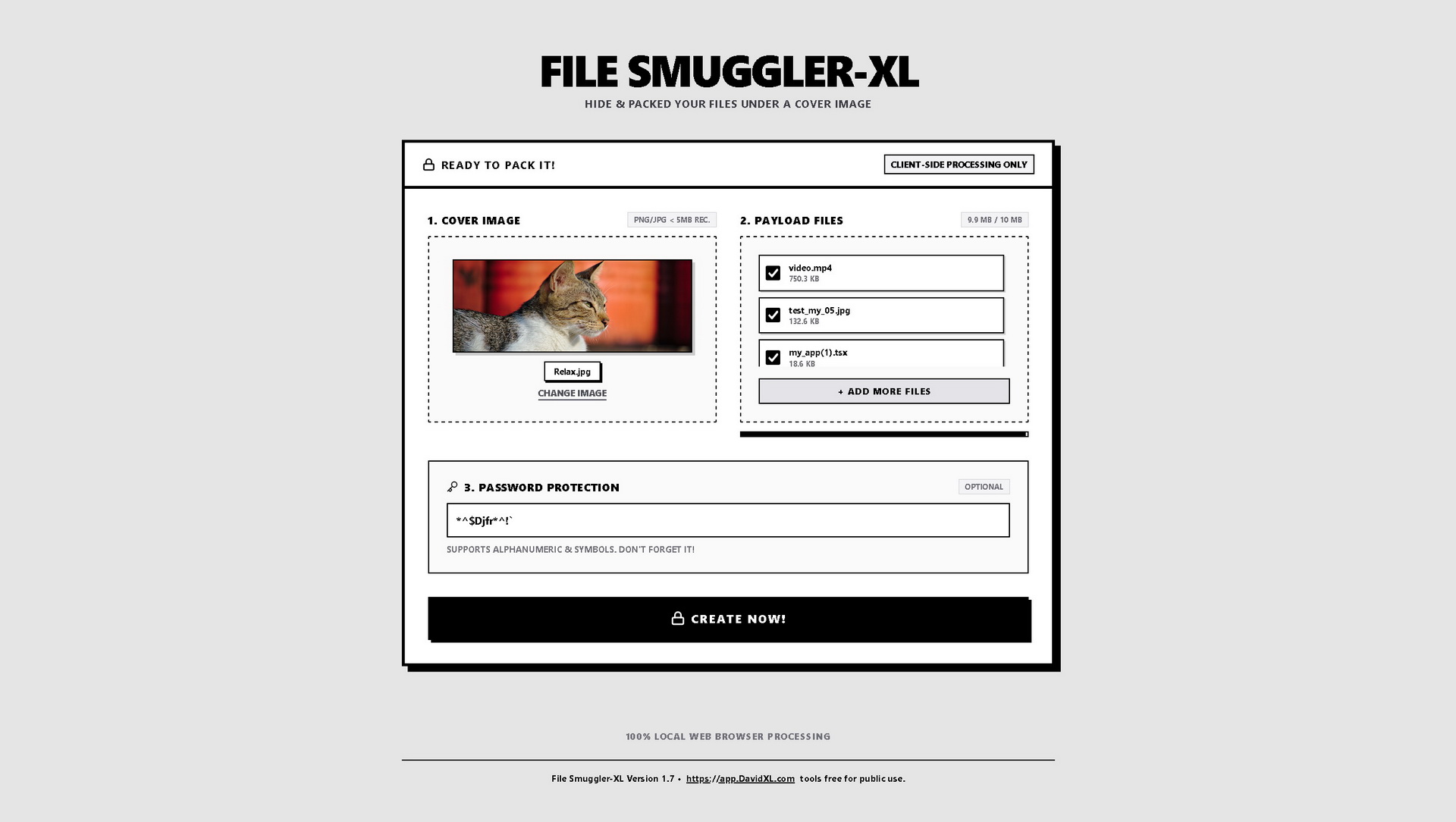
Step 1: Choose a Cover Image
- Click the "Select Image" box in the app, or drag-and-drop an image into it.
- Choose a normal PNG or JPG image (preferably under 5MB for best performance).
Step 2: Add Your Payload Files
- Click the "Add Files" box, or drag-and-drop the files you want to hide.
- You can add multiple files of any type (PDFs, text documents, zips, etc.).
- Keep an eye on the Capacity Bar. You have a strict limit of 10 MB. If you exceed this limit, the bar will turn red, and you will need to uncheck or remove files.
Step 3: Set a Password (Highly Recommended)
- In the Password Protection section, type a password (up to 12 characters).
- The password supports letters, numbers, and symbols.
- WARNING: Do not forget this password! Because processing is 100% local, there is no "Forgot Password" feature. If you lose the password, your hidden files are permanently lost.
Step 4: Create and Download
- Click the large black "CREATE NOW!" button at the bottom.
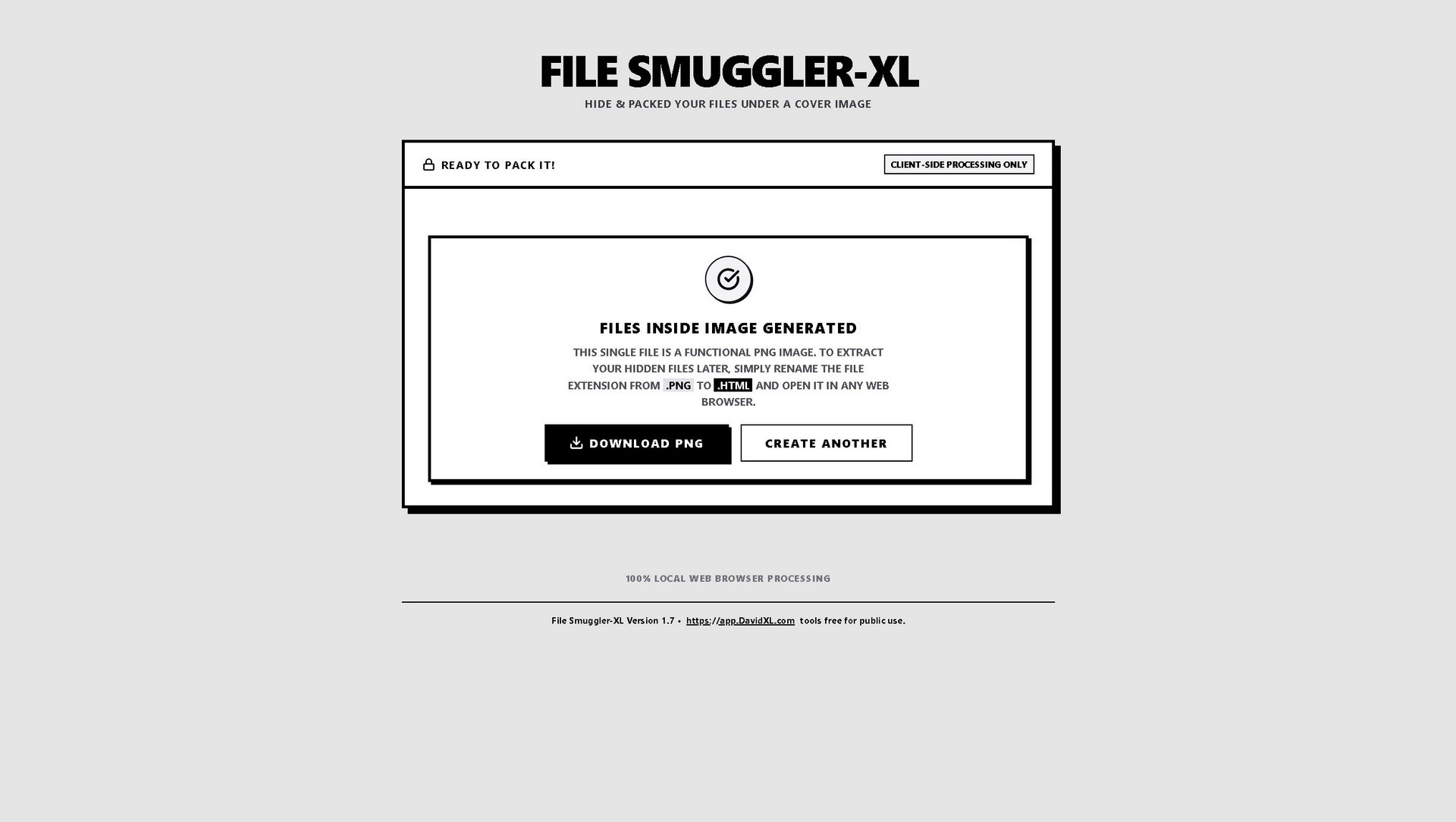
- The app will encrypt and package your files.
- Once successful, click "Download PNG". The file will save to your computer as
hidden_file.png.
*Note: By default it will save as "hidden_file.png" however you may rename the image with other name as you wish eg: "my_photo.png"
How to Use: Extracting Your Files (The Recovery)
Because FILE SMUGGLER-XL creates a self-contained package, you do not need to return to this app to get your files back.
Step 1: Rename the File Extension
Locate hidden_file.png (or file that you already renamed it) on your computer. You need to change the file extension from an image to a webpage.
- Right-click the file and select Rename.
- Change
.pngto.html(so the file becomeshidden_file.html).- Note: If you cannot see the
.pngpart of the name, you may need to enable "View File Extensions" in your Windows or Mac folder settings.
- Note: If you cannot see the
- Your computer will likely warn you that changing extensions might make the file unusable. Click Yes or Confirm to proceed.
Step 2: Open the renamed file (*.html)
- Double-click your newly renamed
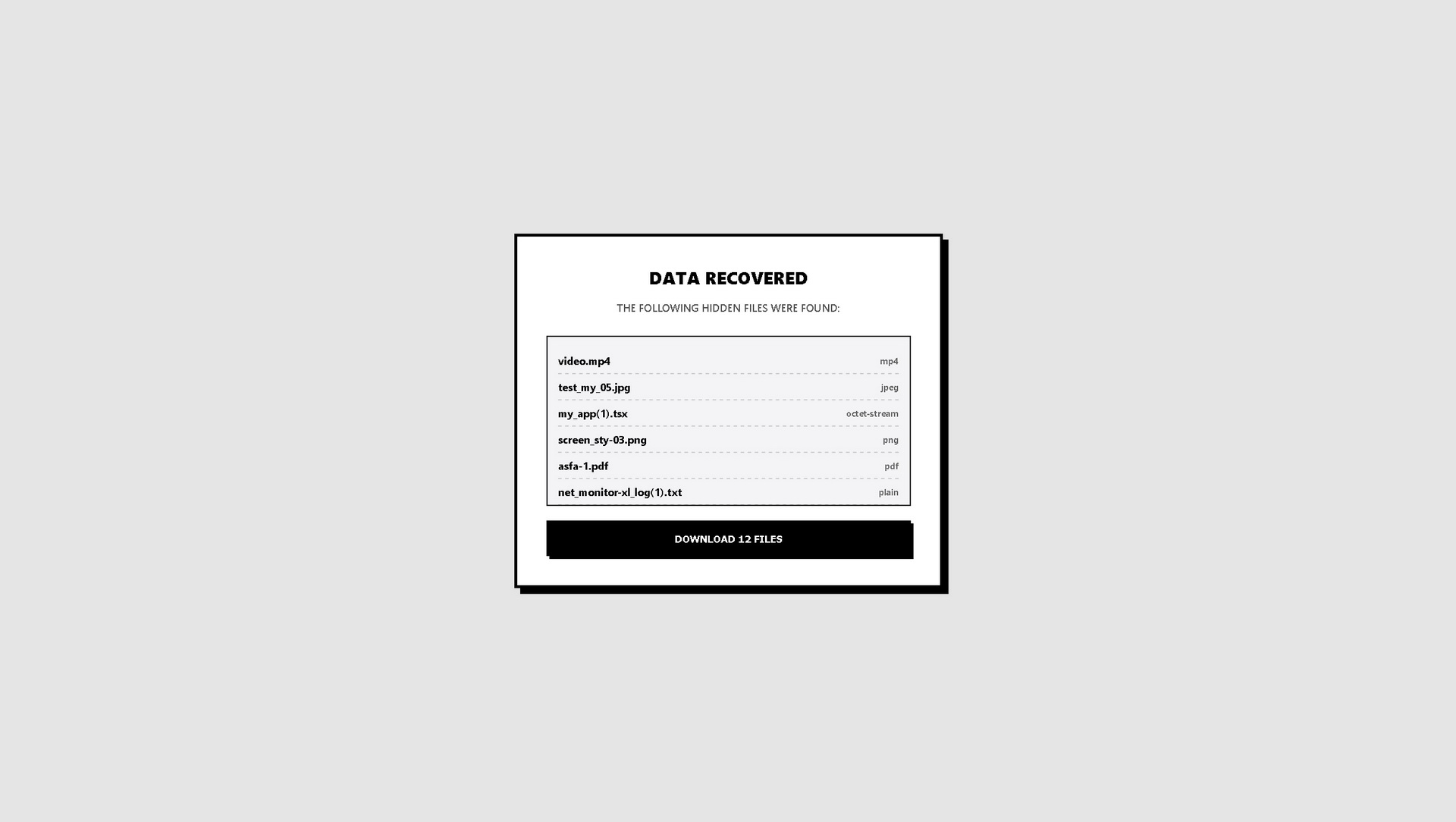
hidden_file.htmlfile. - It will open in your default web browser (Chrome, Edge, Safari, etc.), revealing the hidden Extractor Interface.
Step 3: Decrypt and Download
- If you set a password during the creation phase, the interface will prompt you to enter it.
- Type your password and click "Decrypt & View".
- You will now see a list of your hidden files. Click "Download X Files" to extract them safely back to your computer.
*Privacy Use Note: 100% Private (Local Processing): Everything happens run directly inside your web browser. No files, passwords, or images are ever uploaded to any server or on my host server. If you you don't feel confident to use then open this page, turned off your internet (off-line) and run the app just to make you feel safe and ease of mind.
Frequently Asked Questions (FAQ)
Q: Are my files safe? Can the website owners see them? A: Your files are completely safe. The application runs entirely on "Client-Side Processing," meaning all the coding and encrypting happens inside your computer's memory. Your data never touches the internet.
Q: Why is the limit exactly 10MB? A: Hiding data inside an image inherently makes the image file size larger. A 10MB limit ensures that the final hidden_file.png doesn't become suspiciously large, and ensures web browsers won't crash when trying to process the file locally.
Q: Will the picture look different after I hide files in it? A: No. Visually, the picture will look exactly the same as the original. The hidden files are appended to the raw data of the image in a way that standard image viewers ignore.
CRITICAL QUESTION
What happen to the embed files inside this image if i upload to social media platform like "FACEBOOK", messaging app like "WHATSAPP", "INSTAGRAM", "REDDIT" and etc?
Answer:
If you upload an image generated by FILE SMUGGLER-XL to a major social media platform or messaging app using their standard photo-sharing features, the hidden files will almost certainly be destroyed.
Here is a breakdown of why this happens and how you can actually share these files safely:
The Problem: Compression and Image Processing
Major platforms like Facebook, Instagram, WhatsApp, X (Twitter), and Reddit do not just host your file as-is. When you upload a picture, their servers immediately process it:
- Re-encoding and Compression: To save server space and make pages load faster, these platforms take your image, strip it down, and rebuild it as a smaller, highly compressed file (often converting PNGs to WebP or JPEGs).
- Metadata Stripping: For privacy reasons, platforms intentionally scrub out non-image data (like EXIF data, GPS coordinates, and camera info).
Because FILE SMUGGLER-XL works by appending arbitrary encrypted data directly to the end of the raw binary code of the image, the aggressive processing done by social media sites will view this hidden payload as "junk data" and completely delete it during compression. The resulting image that appears on your feed will just be a normal, empty picture. ......it means "Your embed files inside the image no longer theres...gone!"...which is good btw if you don't want it to fall in the hand of some smart person who knows what to do with it.
How to Successfully Share the Smuggled Files
If you want to send a file generated by FILE SMUGGLER-XL to someone else, you must send it in a way that preserves the original, untouched file structure.
Here is how you can do it:
- Email: Attaching the image as a standard file attachment in an email (like Gmail or Outlook) will preserve the hidden data.
- Cloud Storage: Uploading the file to services like Google Drive, Dropbox, iCloud, or OneDrive will preserve the file perfectly. You can then share a download link.
- WhatsApp / Telegram (Document Mode): If you use the standard "Photo" picker, the hidden data will be destroyed. However, if you choose to send the image as a "Document" or "File", the messaging app will send the raw file untouched, preserving your hidden vault.
- Discord / Slack: Sending the file as a raw attachment usually preserves it, but if the platform tries to re-encode it for a smaller preview, it may fail.
- USB Drives / Direct Transfer: Moving the file manually via a thumb drive or local network transfer is 100% safe.
In short: Never upload the file as a "photo" to a social feed. Always treat it and share it as a raw "document" or "file attachment."