
STREAMER | All | Use Now
CCTV - " Let's observe what's happening ...together!"
What does it do?
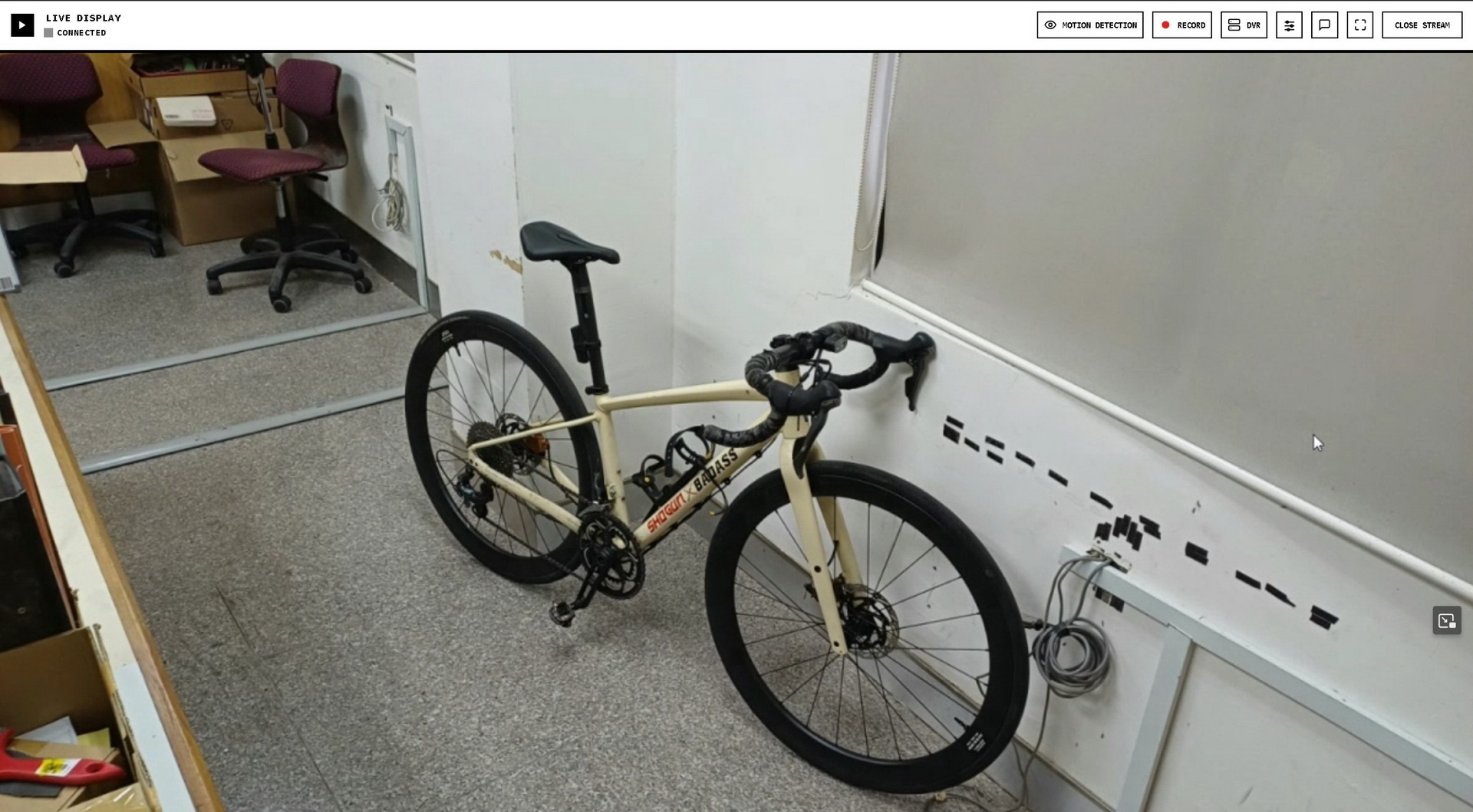
At first i wanted to build an app something to easy streaming video to external device for game recording (..try to off-load pc processing load to external device for better FPS ....it was a bit "meh!" though due to latency) then i realised why not extend this functionality beyond than just 'general' streaming for example make use of smart phone as CCTV camera with MOTION DETECTION + DVR function to detect movement, forest animal monitoring, catch people stealing your food from the fridge, paranormal ghost hunting thing and other cool thing with IOT (Internet Of Things) with devices you have in your pocket. Everything can be stream and best if you have cameras on. Creativity have no limits!. Recently during office presentation ones forgot to setup projector show their presentation on the white board....solution. Scan QR code on hosted app then everyone can watch your presentation on their smartphone! There many ways to use this app! ...i'm happy with my streamer app build.
"Finally i can watch live or left it 'auto detect' which animal rummage my trash can and left the place messy, hhhrrmmpphhh!!"
So this app i called it "EZ WATCHER-XL", it's a secure, browser-based, Peer-to-Peer (P2P) live streaming and remote monitoring application. It allows you to broadcast your screen or camera from one device and securely view it on another in real-time. Because it is built on WebRTC technology, your video feed is transmitted directly from the host device to the viewer device. It never passes through or gets saved on any external servers, ensuring complete privacy through End-to-End Encryption (DTLS/SRTP). There is nothing to install, and it works entirely within your web browser.
Core Capabilities & Features
- Dual Broadcasting: Share your entire computer screen (desktop) or use your device's camera (front or back on mobile).
- PIN Protection: Every stream is secured with a custom PIN to prevent unauthorized access.
- Instant Sharing: Generates a direct URL link and a scannable QR code for fast viewer connection.
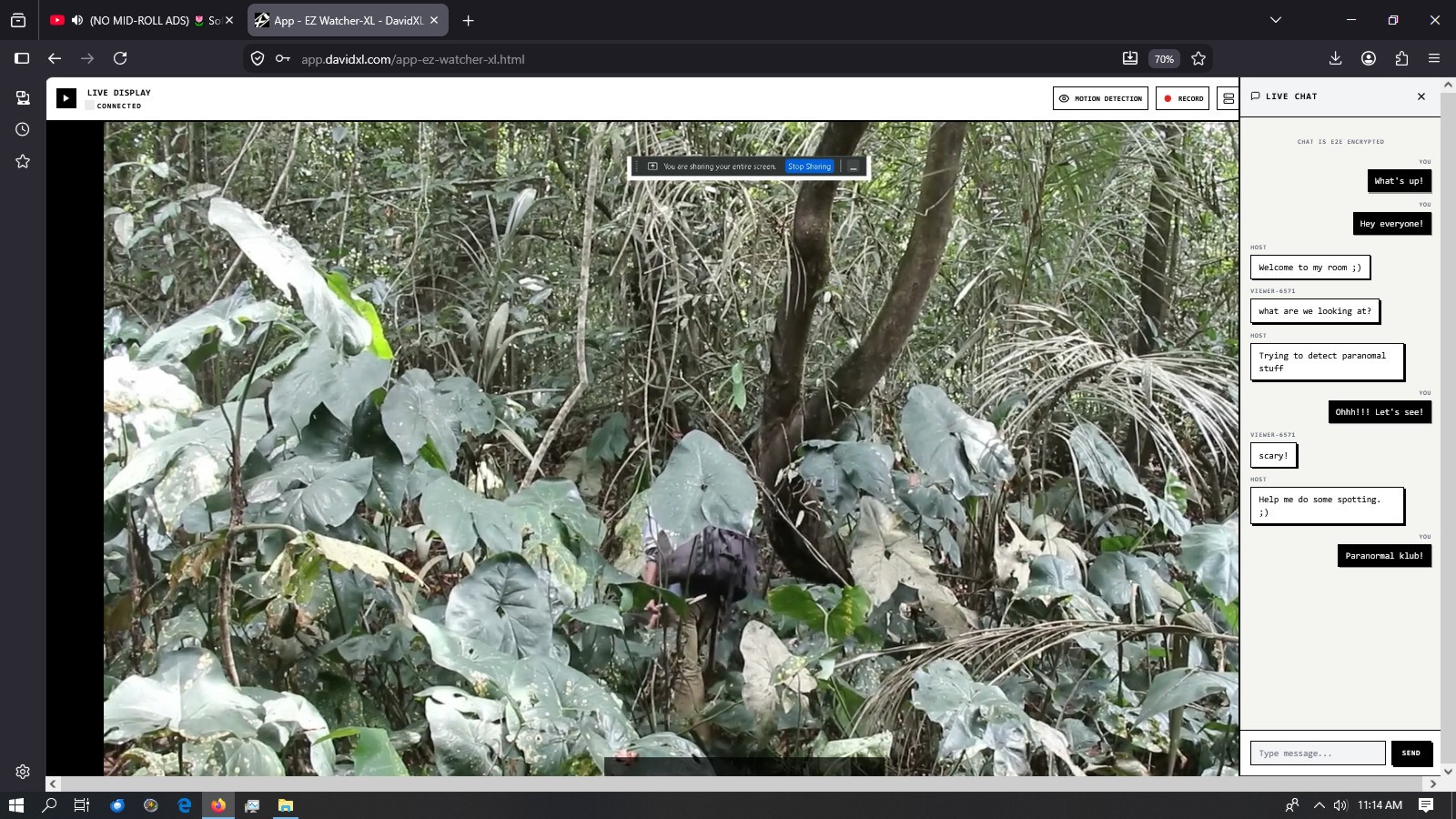
- Chat box: Allow both host and connected viewer to chat and socialized.
- Stream Tuning: Adjust video quality, bandwidth, and playback buffer (latency) in real-time.
- Manual Video Recording: Viewers can record the live stream and save it as a high-quality video file directly to their device.
- Smart CCTV Motion Detection: An automated security mode that scans the stream for movement and automatically records events.
- Internal DVR Archive: Motion events are auto-saved to a secure, rolling 400MB internal storage vault inside the browser, allowing you to export them later.
Updates and bug fix log:
12/8/2026 - Chat box for social interaction + video caption added to give more socialized environment while observe live stream.
12/8/2026 - Added more features. App also have been renamed to fit its mentioned features and focus on proper user.
11/8/2026 - WIP > Fixing audio problem on certain web browser + caching issues.
Step-by-Step guide how to use it
Part 1: How to Host a Stream
- Open EZ WATCHER-XL in your web browser.
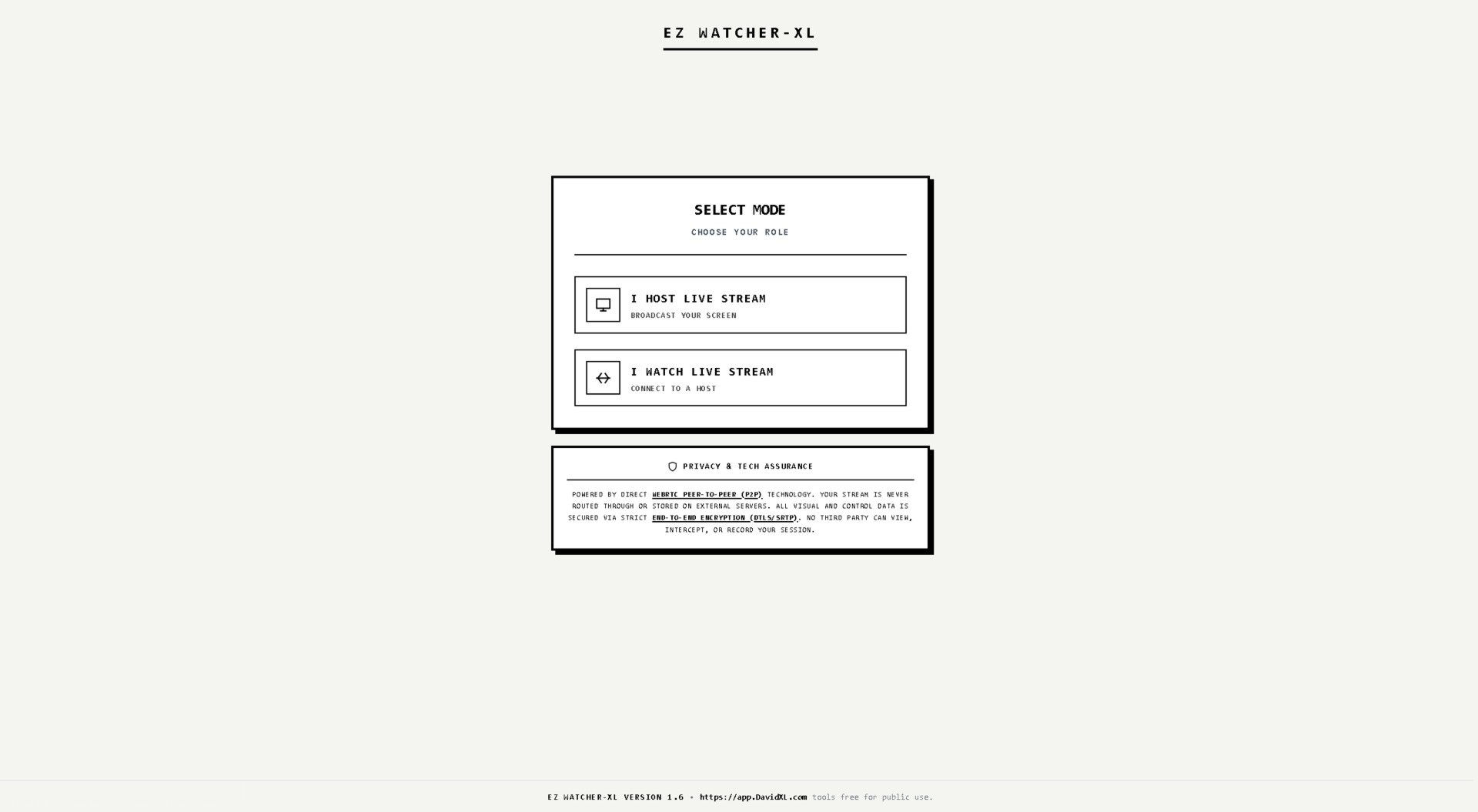
- On the main menu, select "I HOST LIVE STREAM".
- Set a PIN: Enter a secure password in the "Security PIN" box. You will need to give this to your viewer.
- Select Source: Choose what you want to broadcast (Screen Share, Front Camera, or Back Camera).
- Click "Initialize Stream".
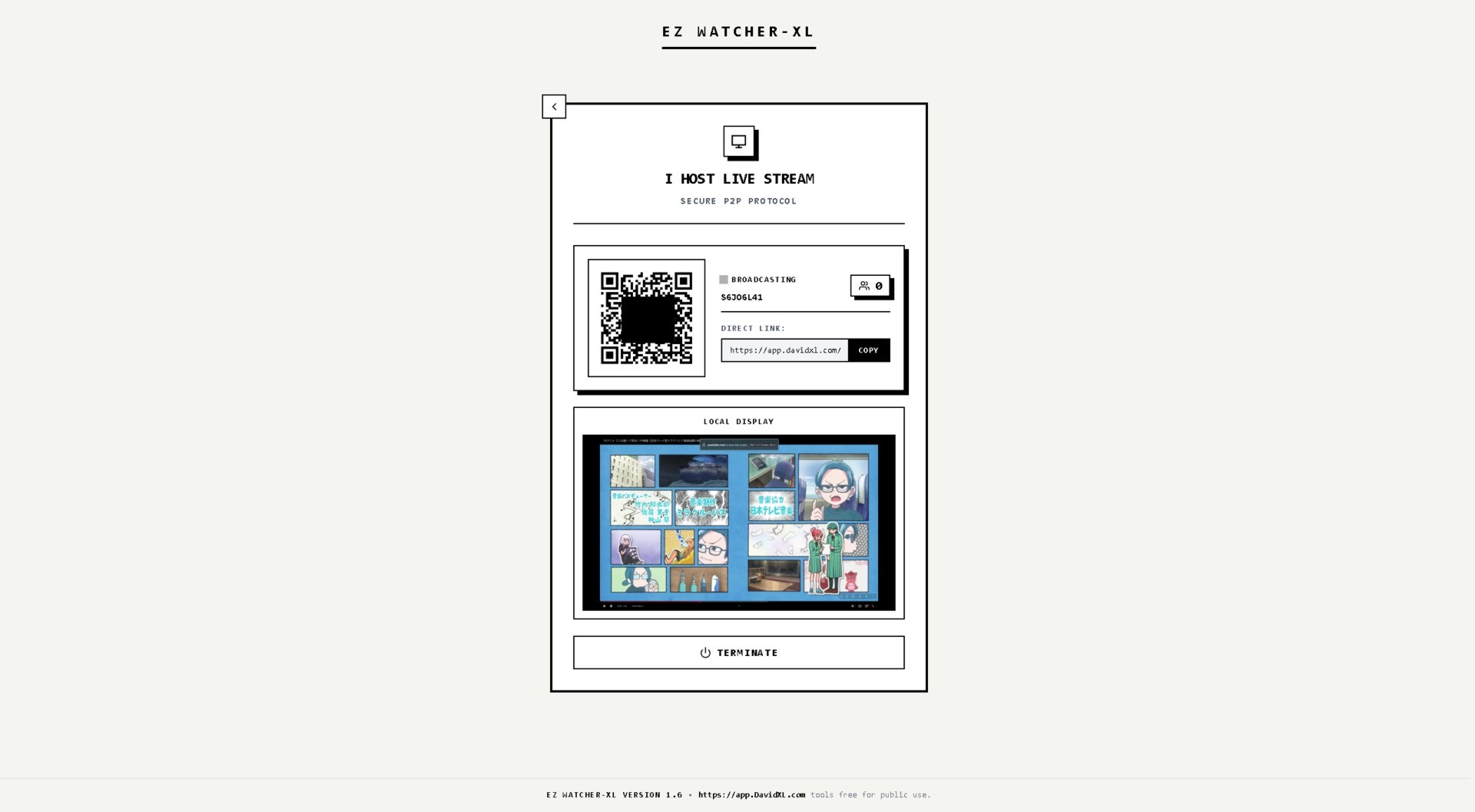
- Share the Stream: The app will generate a unique Stream ID. You can share your stream in three ways:
- Tell the viewer your Stream ID and PIN.
- Click "Copy" next to the Direct Link and message it to your viewer.
- Click the small QR code on your screen to enlarge it, allowing a mobile viewer to simply scan it with their phone's camera.
- To end the broadcast, click "Terminate".
Part 2: How to Watch a Stream
- Open EZ WATCHER-XL on the viewing device.
- Select "I WATCH LIVE STREAM".
- Enter Credentials: Paste the 8-character Stream ID and enter the Host's Security PIN. (Note: If you clicked a direct link or scanned a QR code, these will be filled in automatically).
- Click "Connect".
- Once connected, move your mouse (or tap the screen on mobile) to reveal the top Control Bar.
Advanced Viewer Features
🔴 Manual Recording
If you want to record what you are watching:
- Reveal the top Control Bar and click the "Record" button.
- The button will turn red, indicating recording has started.
- When finished, click "Stop Rec".
- A popup will appear displaying your recording's file size. Click "Save Video File" to download it to your device's standard Downloads folder.
👁️ CCTV Motion Detection
Turn your setup into an automated security camera and you can move away leave it unattended, it will record and store all the 'detected' videos for you when you come back:
- On the Viewer Control Bar, click "Motion Detection".
- The button will turn blue and indicate it is "Scanning".
- How it works: If movement is detected on the stream, a red "MOTION REC" alert will appear, and it will begin recording. It will continuously record until exactly 10 seconds after all movement stops.
- Adjusting Sensitivity: Click the Tuning icon (three slider lines) on the control bar. Under "CCTV Motion Sensitivity", you can choose between High (Mouse Cursor), Medium (Hand Gestures), or Low (Full-Body Movement).
📼 The DVR Archive
When using Motion Detection, recordings are automatically saved so you don't have to monitor the screen constantly.
- When a motion event finishes, it is silently saved to the browser's internal database (IndexedDB).
- Click the "DVR" button on the Control Bar to open your CCTV Archive.
- Here, you will see a list of all captured motion events along with their timestamps and file sizes.
- Click "Export" on any clip to permanently save it to your computer/phone's hard drive.
- Storage Limit: The DVR holds a maximum of 400MB. If it gets full, it will automatically delete the oldest clip to make room for new ones. You can also click "Clear Storage" to delete all clips manually.
Where did the CCTV Archive saved my file?
The CCTV Archive does not save to a standard, visible folder like your "Downloads" or "Videos" folder.
Because the app is running in a web browser, it saves the recordings directly into the browser's internal, hidden database (called IndexedDB).
If you are looking for the exact physical folder on your hard drive where the browser hides this data, it depends on what device and browser you are using:
- Windows (Chrome/Edge): C:\Users\[YourName]\AppData\Local\Google\Chrome\User Data\Default\IndexedDB
- Windows (Firefox): C:\Users\[YourName]\AppData\Roaming\Mozilla\Firefox\Profiles\[random-text]\storage\default
- Mac (Chrome): ~/Library/Application Support/Google/Chrome/Default/IndexedDB
- Android / iOS: Stored deep inside the browser app's protected system files (cannot be accessed without rooting/jailbreaking your phone).
Important Note: If you actually go to those folders on your computer, you won't find playable .mp4 or .webm video files! The browser scrambles them into unreadable database chunks (like .ldb or .sqlite files).
How to actually get your videos: To turn them into playable video files, you must open the EZ WATCHER-XL app, click the "DVR" button, and click "Export" on the clip you want. This commands the browser to stitch the hidden chunks back together and save them properly into your device's standard "Downloads" folder!
*Note: However for normal standard recording [ RECORD ] button it saves inside standard "Downloads" or "Videos" folder.
Important Troubleshooting Notes
- No Audio on Mac/Linux: Due to strict browser limitations, Firefox and Safari on Mac/Linux do not support capturing system audio during a Screen Share. The app will automatically fall back to a video-only feed.
- MS EDGE web browser: You may encounter error or refused connection to Host Streamer who stream through Microsoft EDGE web browser.