
Code Dev. | PC | Use Now
What does it do?
As a coder i spent more time scaning and seeping through templates for CSS ID and CLASS hoping i could struck something that works ....those who are in the same boots i feel ya all. ;) ...fear not i made something cool to help speed up the process of extract all the CSS codes on one place. Introducing my > CSS Inspector-XL! This tool is designed to help you "see" the invisible structure of any website. If you are learning web development, designing a site, or just curious about how your favorite web pages are built, this tool will act like X-ray glasses for the web. When you look at a website, you see text, images, and colors. But underneath that visual layer, every website is built using boxes (called HTML elements) styled with rules (called CSS).
CSS Inspector-XL helps you visualize and extract those rules. It does three main things:
-
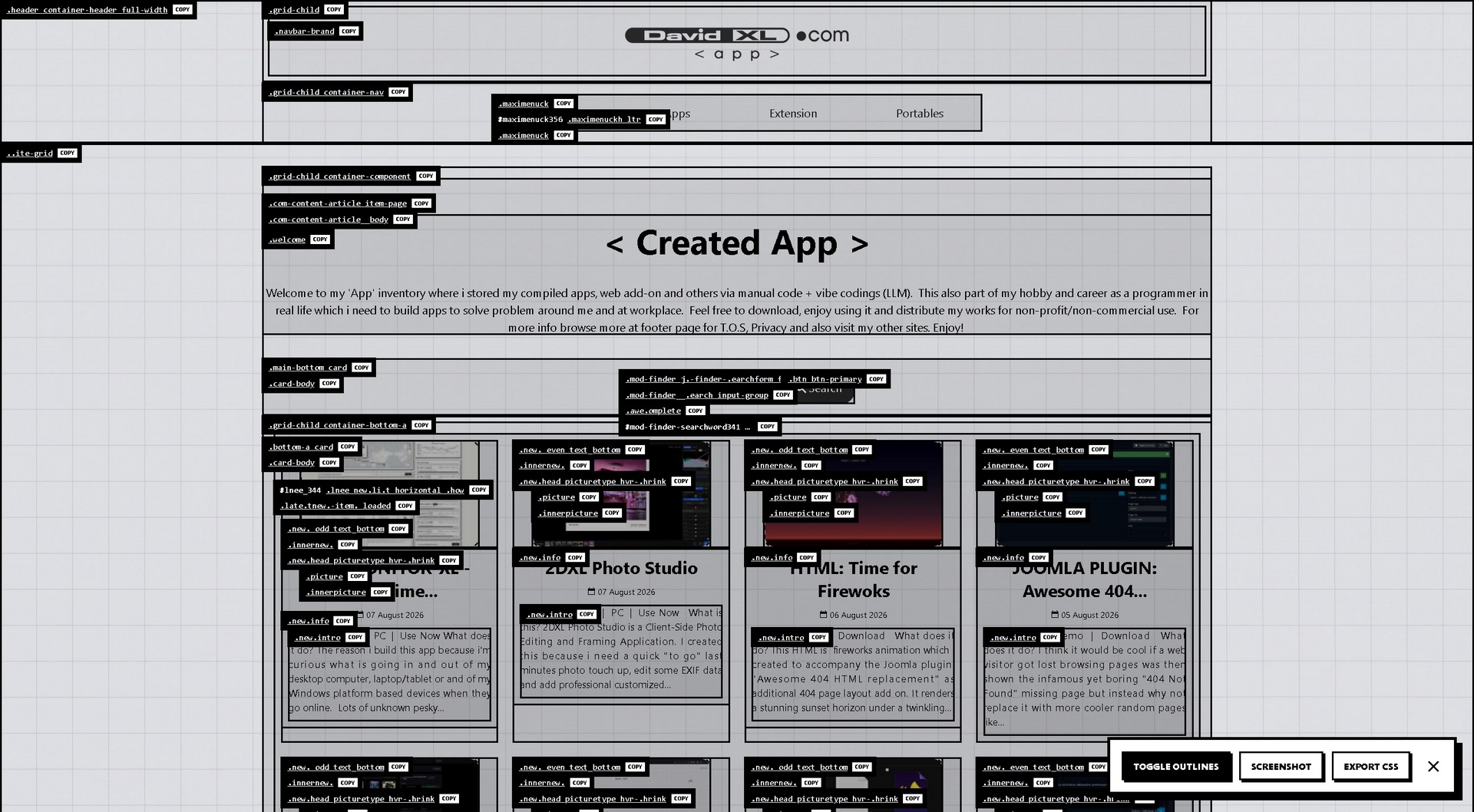
Toggle Outlines: It draws bold, high-contrast borders around the main structural blocks of a webpage (like headers, navigation bars, main content areas, and footers). It also attaches small labels showing the "ID" or "Class" name of that block, which are the labels developers use to style them.
-
Screenshot: It takes a full-page picture of the website, including the outlines you've drawn, and saves it to your computer.
-
Export CSS: It generates a downloadable text file containing a "skeleton" of the website's CSS rules. This gives you a starting point to see how the site is structured without having to dig through complex code manually.
Why Do I Need to Install It as a "Bookmarklet"?
For security reasons, web browsers (like Chrome, Safari, or Firefox) do not allow regular web pages to read or modify other web pages you are visiting. To bypass this restriction safely, CSS Inspector-XL is packaged as a Bookmarklet. A bookmarklet is simply a small piece of code saved as a bookmark in your browser. When you click it, the code runs directly on the page you are currently viewing, allowing it to inspect the layout.
How to Install and Use CSS Inspector-XL
Follow these three simple steps to start inspecting websites:
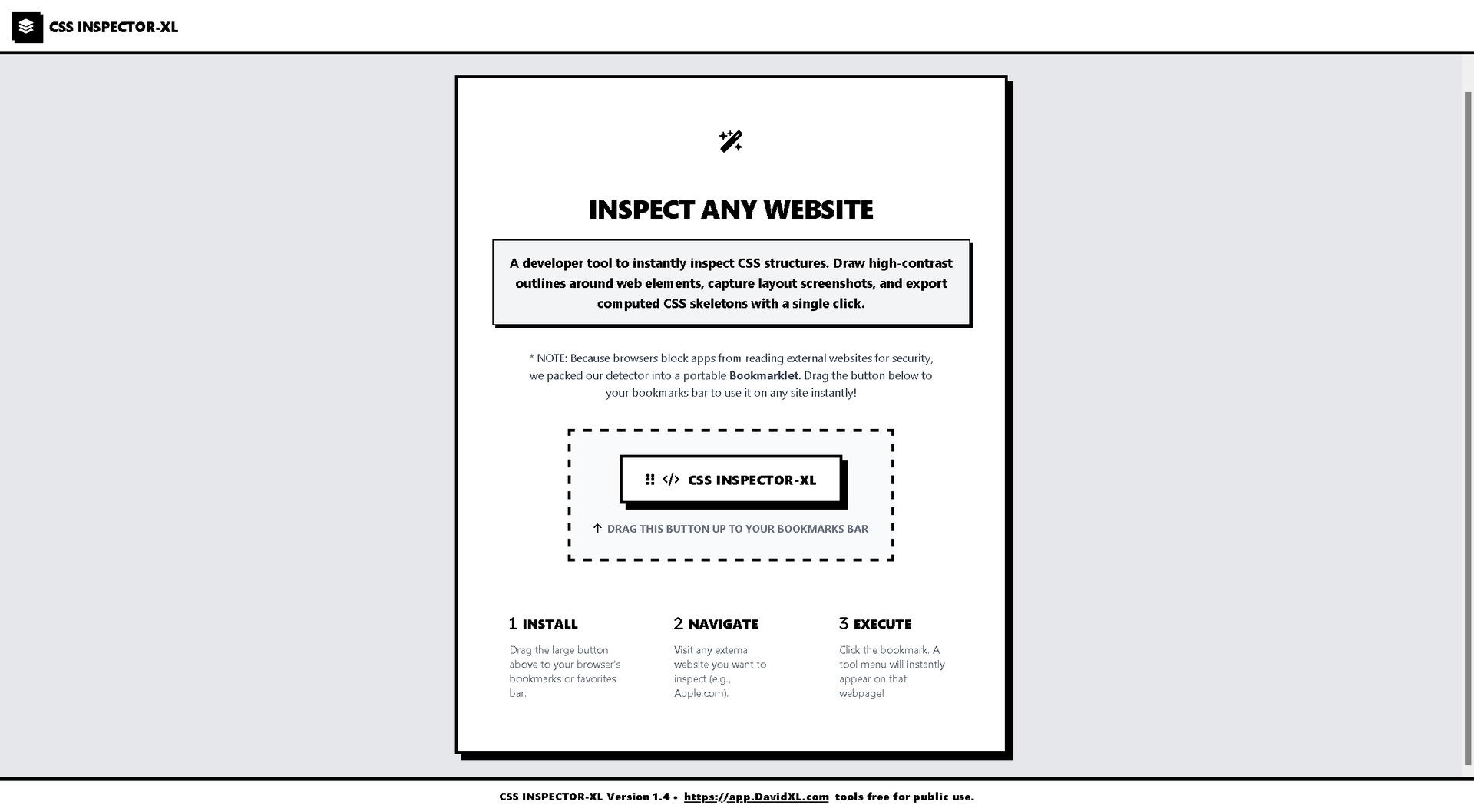
Step 1: Install the Bookmarklet
-
Make sure your browser's Bookmarks Bar (or Favorites Bar) is visible.
-
Tip: In most browsers (like Chrome or Edge), you can show the Bookmarks Bar by pressing
Ctrl + Shift + B(Windows) orCmd + Shift + B(Mac).
-
-
On the CSS Inspector-XL homepage, locate the large button that says "DRAG ME TO YOUR BOOKMARKS BAR!" (It has a grip icon and says
< / > CSS INSPECTOR-XL). -
Click and hold that button, drag it up to your Bookmarks Bar, and let go.
-
You should now see a new bookmark labeled "CSS INSPECTOR-XL" in your browser.
Step 2: Navigate to a Website
-
Go to any website you want to inspect. For example, open a new tab and go to
apple.com, wikipedia.org,or your own website.
Step 3: Execute the Tool
-
While on the website you want to inspect, click the "CSS INSPECTOR-XL" bookmark you just created in your Bookmarks Bar.
-
A small, high-contrast tool menu will instantly appear in the bottom-right corner of the webpage.
Using the Tool Menu
Once the menu appears on a webpage, you have four options:
-
TOGGLE OUTLINES: Click this to draw boxes around the page's structural elements. You will see labels showing IDs (starting with #) and Classes (starting with .). You can even click the tiny "COPY" button on these labels to copy the name to your clipboard. Click "TOGGLE OUTLINES" again to turn them off.
-
SCREENSHOT: Click this to capture the entire webpage exactly as it looks right now (including the outlines, if they are turned on). The image will automatically download to your computer as
layout-snapshot.png. -
EXPORT CSS: Click this to download a
.cssfile. This file contains a list of the main structural elements found on the page, along with comments detailing their size and position. It will download aslayout-detected.css. -
✕ (Close): Click the "X" button to remove the tool menu and clear any outlines from the page.
That's it! You are now ready to inspect the structure of the web.